
Follow along with the video below to see how to install our site as a web app on your home screen.
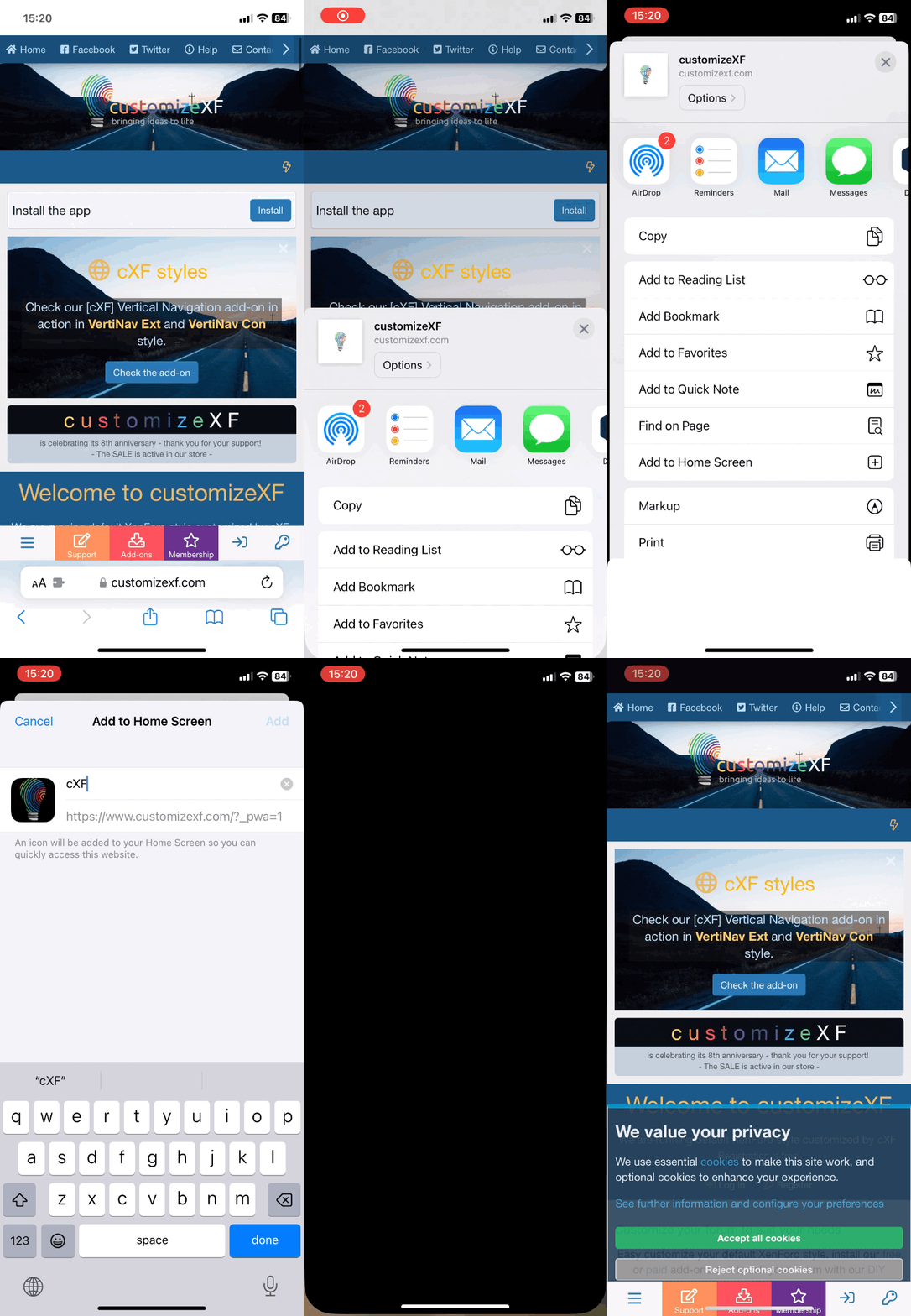
Note: This feature may not be available in some browsers.
![[cXF] Advanced Footer](https://data.www.customizexf.com/resource_icons/0/37.jpg?1729496287)
[cXF] Advanced Footer 2.4.0
- Author BassMan
- Creation date
- Featured
Q: Where can I find the configuration settings for this add-on?
A: Check the Admin Control Panel (ACP) underSetup > Options and then the name of the add-on. Check also the Appearance > Style properties for other settings for this add-on.
Q: Where can I add content for columns?
A: The content for the columns is added directly to the templates. In Admin Control Panel (ACP) go toAppearance > Templates and filter templates only for [cXF] Advanced Footer.You will still find many templates, but those are the ones you want to edit:
cxf_advanced_footer_column_acxf_advanced_footer_column_bcxf_advanced_footer_column_ccxf_advanced_footer_column_d
You see the last letter. This indicates the content of which column you are editing.
You can enable columns in the Style properties for this add-on.
Q: How can I edit a predefined code in a column template?
A: In each template, you will find some predefined code. It looks like this:
HTML:
<div class="cxf-af-linkGroup">
    <ul>
        <li><a href="#">Test link 1</a></li>
        <li><a href="#">Test link 2</a></li>
        <li><a href="#">Test link 3</a></li>
        <li><a href="#">Test link 4</a></li>
    </ul>
</div>
Some basic styling has already been added to the CSS/LESS template for class
cxf-af-linkGroup. Make sure you leave this piece of code if you want to see the default formatting.To add your link, replace
# with the URL. To replace the text, edit Test link 1 with your text.Q: How can I edit a link in a predefined code in a column template to open in new tab?
A: Edit code like this:
HTML:
<li><a href="#" target="_blank">Test link 1</a></li>You can see we added the
target="_blank".Q: How can I edit a link in a predefined code in a column template to open in new tab and add "nofollow"?
A: Edit code like this:
HTML:
<li><a href="#" target="_blank" rel="nofollow">Test link 1</a></li>You can see we added the
rel="nofollow".Q: How can I add an icon before the link on the predefined code for the column template?
A: Add<xf:fa icon="fa-bolt" /> right after the <li> tag (add space between them). Change fa-bolt to change the Font Awesome icon.Now you should have it like this:
HTML:
<li><xf:fa icon="fa-bolt" /> <a href="#">Test link 1</a></li>To add a colour for the icon, edit the code to this:
HTML:
<xf:fa icon="fa-bolt" style="color: #bbdef5;" />As you can see we have added
style="color: #bbdef5;" to style the icon. Change the value to change to colour.Q: How to center the content of the footer logo column?
A: In the ACP go toAppearance > Style properties > [cXF] Advanced Footer [columns]. Click on the Footer logo column style tab and add text-align: center; in the Extra field.To center the social icons, go to
Appearance > Style properties > [cXF] Advanced Footer [social]. Click on the Social Icons Container tab and add justify-content: center; in the Extra field.Q: How do you create a colour gradient for the footer?
A: In the ACP go toAppearance > Style properties > Footer. In the Footer tab add this code in the Background Color field: linear-gradient(0deg, xf-intensify(@xf-chromeBg, 12%), @xf-chromeBg);.If you need any further support with editing the column templates, please open a support thread.